Development Environment
Setup IDE
We highly recommend developing your LITIENGINE game with an IDE (Integrated Development Environment). An IDE provides code completion, interactive debugging, Gradle integration, hot reloading, and test execution that a plain text editor cannot provide.
The most popular IDEs for modern Java development are:
- IntelliJ IDEA (Recommended) — The premier IDE for Java, featuring best-in-class Gradle support, seamless navigation, and direct compatibility with utiLITI's script workflows. Both the free Community Edition and Ultimate Edition work great.
- Visual Studio Code — Lightweight editor with the Extension Pack for Java.
- Eclipse IDE — Traditional open-source Java development environment.
IntelliJ IDEA (Recommended)
- Open IntelliJ IDEA and choose New Project (or Open if opening an existing Gradle project).
- Select Java or Gradle with the Java language.
- In the JDK dropdown, select your installed Java 25 JDK. If it is not listed, click Add JDK... -> Download JDK... or navigate to your local JDK directory.
- When opening an existing LITIENGINE project, IntelliJ will automatically detect
build.gradle/build.gradle.ktsand configure all project dependencies and source directories.
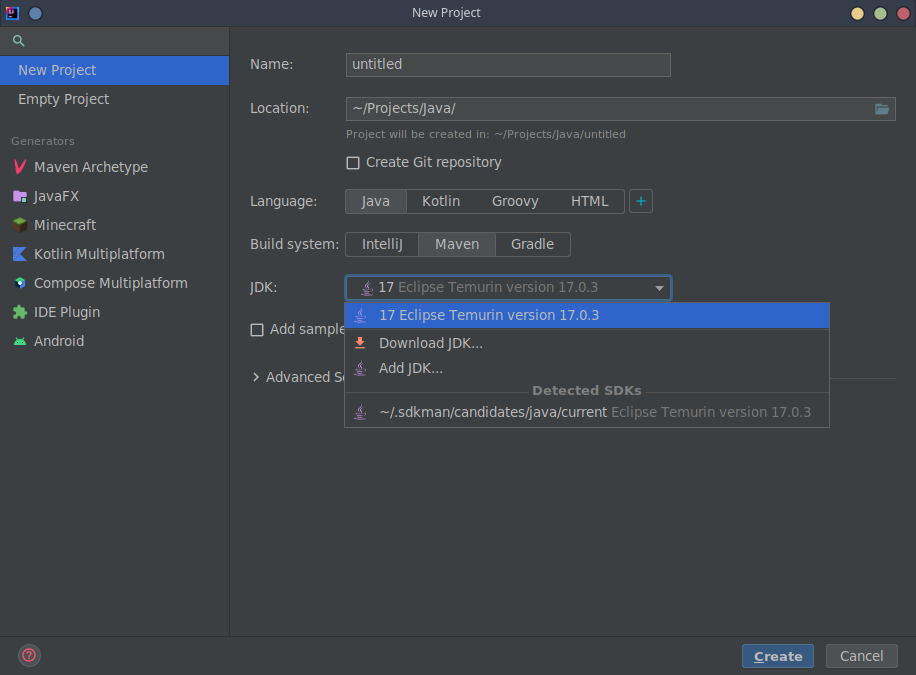
Tip (Linux & macOS): You can use SDKMAN! to manage your JDK installations easily. Once installed, run
sdk install javato install the latest JDK, which will be detected by your IDE. For details, see the SDKMAN! Documentation.
Eclipse
If you use Eclipse as your IDE:
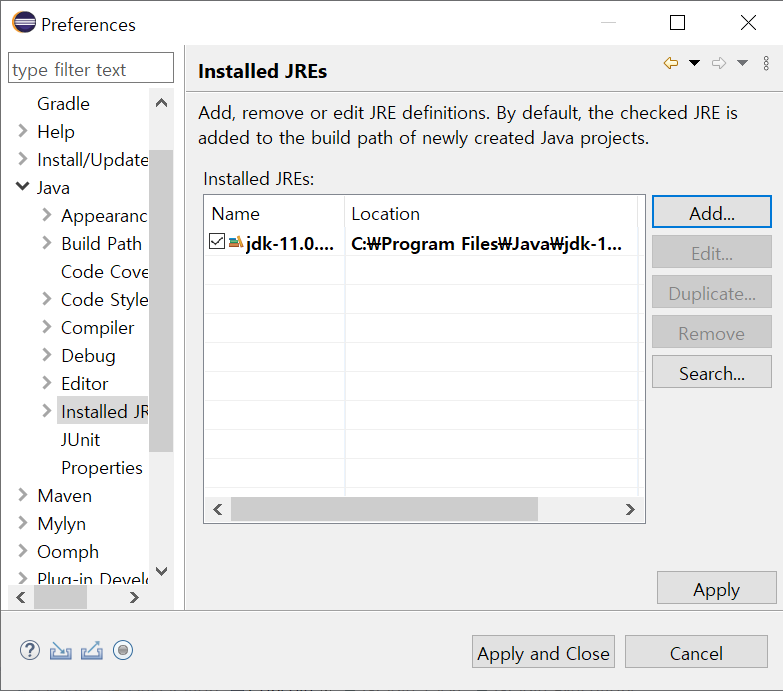
- Open Eclipse and unfold Java in the Preferences menu.
- Select Installed JREs, click Add, and choose Standard VM.
- Click Directory..., navigate to your installed JDK 25 folder, and click Finish.
- Set the new JDK as the default workspace JRE and click Apply and Close.
macOS & Apple Silicon Notes
When developing on macOS (Sonoma, Ventura, Sequoia with M1/M2/M3/M4 Apple Silicon):
- Java Baseline: Use an AArch64 (ARM64) build of OpenJDK 25 or GraalVM (e.g. Eclipse Temurin or via SDKMAN:
sdk install java). - Foreign Memory Access (Input4j): LITIENGINE automatically manages Panama FFM bindings on macOS for low-latency gamepad and keyboard polling.
- utiLITI UI on Retina Displays: If text appears tiny on high-DPI displays, Swing UI scaling is automatically adjusted by the JVM. You can explicitly set
-Dsun.java2d.uiScale=2.0in your IDE run configuration if needed.