Settings & Keyboard Shortcuts
Access the application preferences by selecting File -> Settings... or pressing Ctrl + Alt + S
Settings Dialog & Real-Time Search
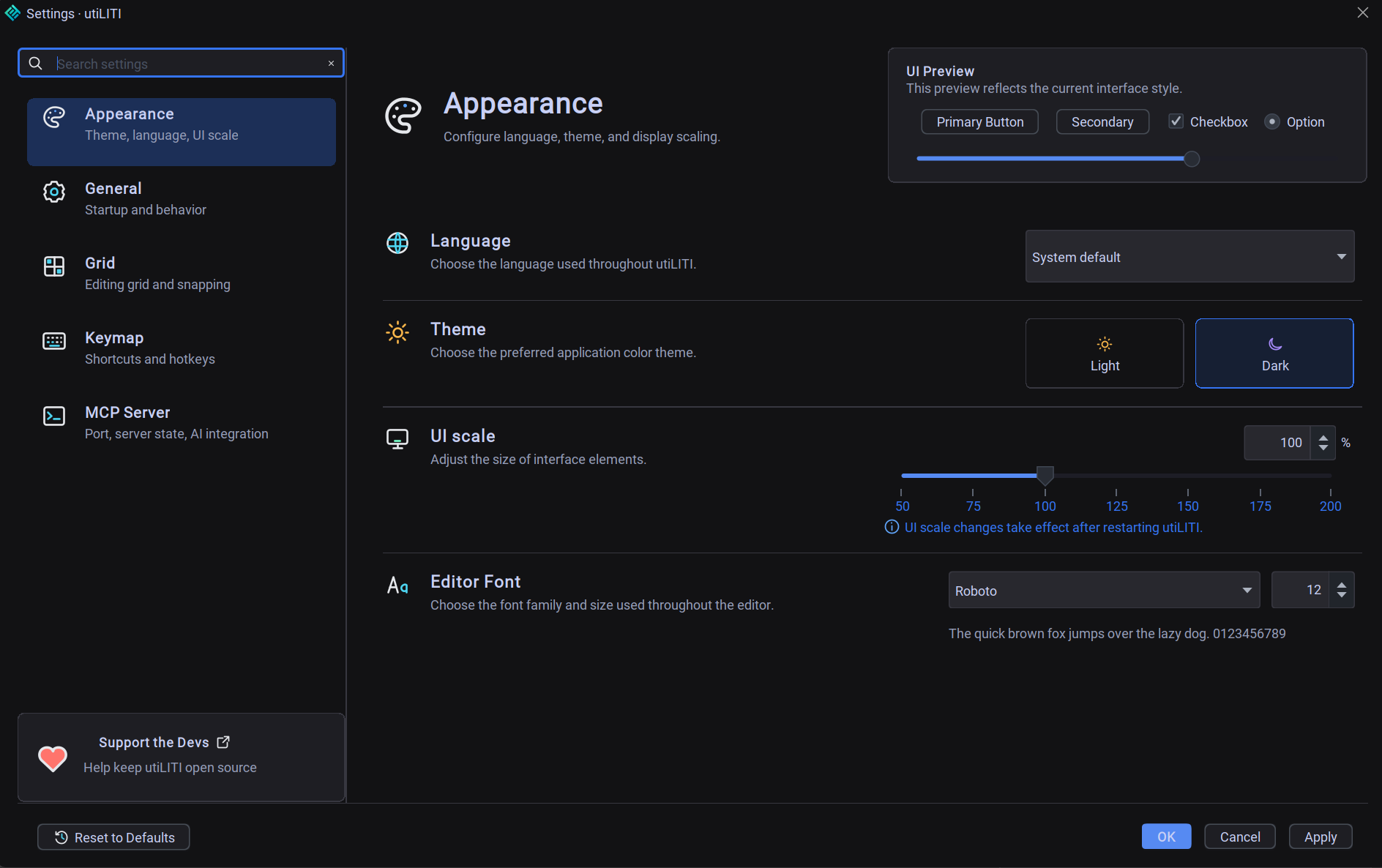
The Settings dialog features an integrated real-time search bar at the top of the category navigation tree. Typing any query instantly filters categories and highlights matching options, whether searching for grid configuration, theme settings, or specific hotkeys. If no matching preference is found, an empty state displays with a one-click Clear Search button to quickly restore full visibility.
Keyboard shortcut displays in the editor automatically adapt to your operating system, rendering macOS-native symbols (Cmd, Opt, Shift) or Windows/Linux keys (Ctrl, Alt, Shift).
The utiLITI Settings dialog with real-time search across Appearance, General, Grid, Keymap, and MCP Server categories.
1. Appearance
Theme : Toggle between Dark Theme (default) and Light Theme .UI Scale : Adjust scaling factor from 0.5x to 2.0x for high-DPI (4K/Retina) displays.Editor Font Family : Choose between Roboto, OpenSans, or installed system monospace fonts for the code and property editors.Editor Font Size : Text point size (8–32).Editor FPS Cap : Limit viewport framerate (1–1000 FPS, default: 60) to reduce GPU/CPU consumption.
2. General
Language & Region : Switch editor localization (English, German, etc.).Reopen Last Project on Startup : Automatically restores the most recently active .litidata project on launch.Gradle Launch Arguments : Additional JVM or Gradle flags passed when running projects.Log Level : Filter console output (ALL, INFO, WARNING, SEVERE, OFF).
3. Grid
Snap to Grid : Global default toggle for grid alignment.Snap to Pixels : Global default toggle for integer pixel coordinates.Snap Division : Set subdivision precision (1/1, 1/2, 1/4 of tile size).Grid Line Width : Thickness of viewport grid lines (in pixels).Grid Color : Custom color picker and opacity slider.Live Preview : Interactive box showing the active grid style.
4. Keymap
Full interactive shortcut table.
Filter commands with the search bar.
Double-click any command row or press Record Shortcut to bind custom key combinations.
Reset Defaults : Restore original factory keybindings.
5. MCP Server
Enable MCP Server : Enable or disable the embedded Model Context Protocol server.Server Port : Port for JSON-RPC / SSE connections (default: 8088).Endpoint Info : Displays http://localhost:8088/mcp and http://localhost:8088/sse with one-click clipboard copy.
Keyboard Shortcuts Reference
File & Project
Action
Windows / Linux
macOS
New Project Ctrl + NCmd + N
Open Project Ctrl + OCmd + O
Save Project Ctrl + SCmd + S
Exit Ctrl + QCmd + Q
Edit & Viewport
Action
Windows / Linux
macOS
Undo Ctrl + ZCmd + Z
Redo Ctrl + YCmd + Y
Cut Ctrl + XCmd + X
Copy Ctrl + CCmd + C
Paste Ctrl + VCmd + V
Delete Selection DeleteBackspace
Select All Ctrl + ACmd + A
Deselect Ctrl + DCmd + D
Quick Search Palette Ctrl + PCmd + P
Inspector History Back Alt + LeftOpt + Left
Inspector History Forward Alt + RightOpt + Right
View & Camera
Action
Windows / Linux
macOS
Toggle Grid Ctrl + GCmd + G
Toggle Collision Boxes Ctrl + HCmd + H
Toggle Custom Objects Ctrl + KCmd + K
Toggle Map IDs Ctrl + ICmd + I
Zoom In Ctrl + +Cmd + +
Zoom Out Ctrl + -Cmd + -
Center on Selection SpaceSpace
Center on Map Ctrl + SpaceCmd + Space
Add Entities
Action
Windows / Linux
macOS
Add Prop Ctrl + 1Cmd + 1
Add Creature Ctrl + 2Cmd + 2
Add CollisionBox Ctrl + 3Cmd + 3
Add Trigger Ctrl + 4Cmd + 4
Add Spawnpoint Ctrl + 5Cmd + 5
Add Map Area Ctrl + 6Cmd + 6
Add Light Source Ctrl + 7Cmd + 7
Add Static Shadow Ctrl + 8Cmd + 8
Add Emitter Ctrl + 9Cmd + 9
Add Sound Source Ctrl + 0Cmd + 0
Scripting & Execution
Action
Windows / Linux
macOS
Run Project Shift + F10Shift + F10
Debug Project Shift + F9Shift + F9
Stop Project Ctrl + F2Cmd + F2
Save Script Ctrl + SCmd + S
Format Code Ctrl + Alt + FCmd + Opt + F
Compile Script Ctrl + F9Cmd + F9
Reload Script Ctrl + RCmd + R
shortcuts
hotkeys
key-bindings
settings
productivity
 The utiLITI Settings dialog with real-time search across Appearance, General, Grid, Keymap, and MCP Server categories.