Tilesets & Wang Terrains
The Tileset Editor (accessible via the Tilesets tab or double-clicking any tileset asset in the asset tree) provides full control over tile graphics, custom tile collision shapes, multi-frame tile animations, and Wang terrain definitions.
Editor Overview
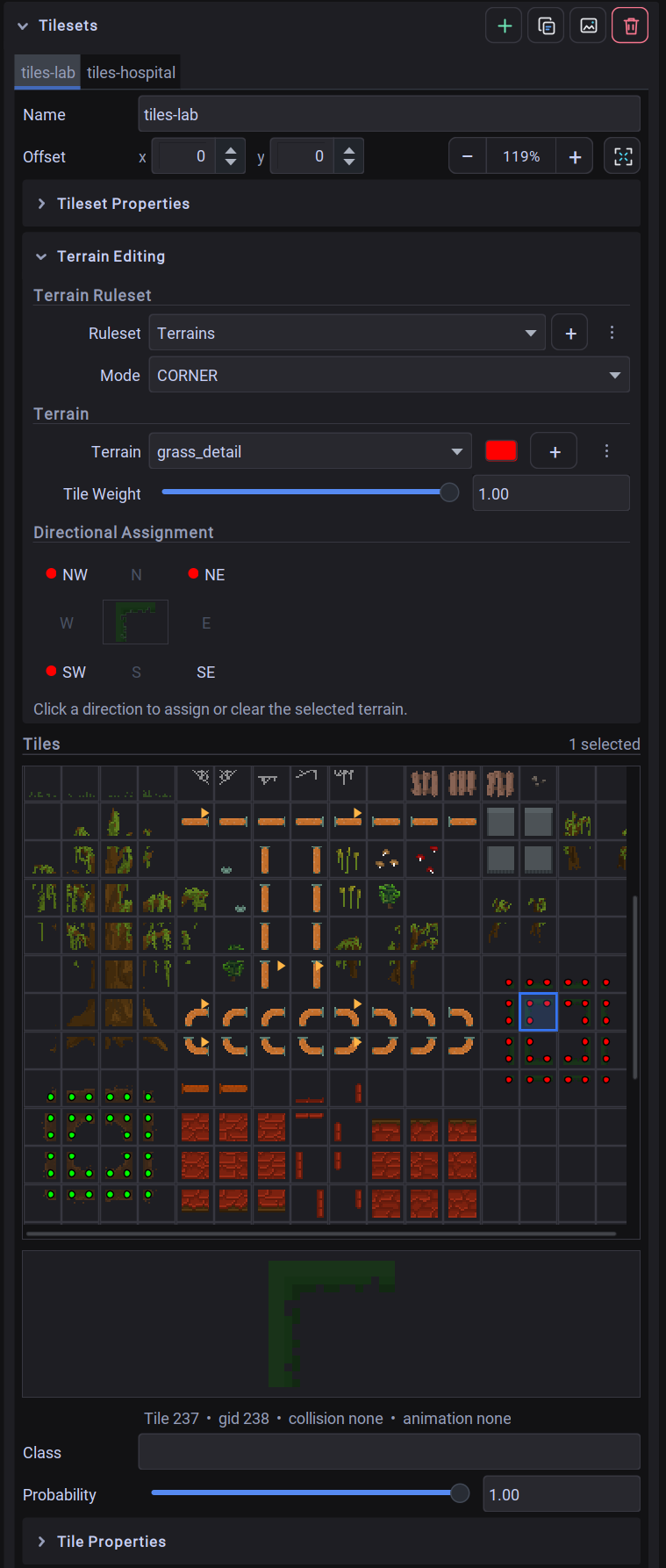 The utiLITI Tileset Editor interface showing interactive tile grid selection, tile collision shape tools, and properties.
1. Tileset Properties & Management
- Importing Tilesets: Go to Resources -> Import -> Import Tilesets... or drag a
.tsxor image file into the editor. - Tile Offsets: Adjust
Tile Offset XandTile Offset Yspinners to offset tile rendering alignment relative to the map grid. - Custom Tileset Properties: Define custom key-value pairs applicable to all tiles within the tileset.
2. Tile Properties & Probabilities
Select any tile in the tile grid to configure its individual metadata:
- Type: Custom string categorization (e.g.
water,wall,lava) accessible via LITIENGINE's tile querying API. - Probability Slider: Numeric weighting value (
0.0to1.0) used by procedural generation algorithms and random tile scatters. - Tile Custom Properties: Attach custom metadata specific to that single tile ID.
3. Integrated Tile Collision Editor (TileCollisionEditorPanel)
Instead of requiring separate external collision tools, utiLITI includes an integrated vector collision editor directly within the tileset view:
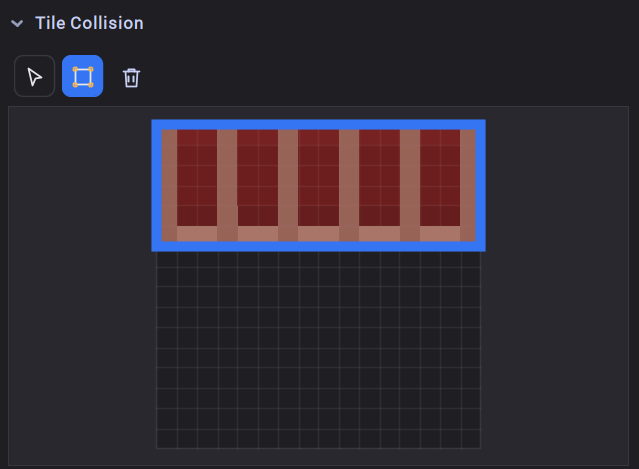 The integrated Tile Collision Editor panel showing shape tools, collision boundaries, and resize handles.
Collision Authoring Workflow:
- Select a tile in the grid.
- Under the Collision Editor section, click Rectangle Mode.
- Click and drag across the tile image preview to define collision boundaries (e.g. half-height walls or isometric tops).
- Switch to Select Mode to move shapes or drag corner/edge handles to resize.
- Click Delete or press
Deleteto remove collision geometry.
When painted on any map layer, tiles with defined collision shapes automatically generate static physics obstacles in LITIENGINE's physics engine.
4. Animated Tiles
Create animated water, spinning coins, flickering torches, and lava directly within the tileset:
- Select the base tile you want to animate.
- In the Tile Animation table, click Add Frame (
+). - Select the next frame tile from the grid and enter its duration in milliseconds (e.g.
150ms). - Add additional frames to complete the animation loop.
- The live animation preview immediately plays back the frame sequence in real-time.
LITIENGINE automatically updates and renders animated tiles during runtime loops without manual code.
5. Wang Terrains & Auto-Tiling
Wang tiles allow the Terrain Brush Tool to automatically connect and blend terrains seamlessly.
Wang Terrain Types:
- Corner: Matches tile transitions based on 4 corner colors.
- Edge: Matches transitions based on 4 edge colors (North, East, South, West).
- Mixed: Matches transitions based on all 8 directions (4 edges + 4 corners).
Setting Up a Wang Terrain Set:
- Under the Wang Terrains panel, create a new Terrain Set (e.g.
Grass_to_Stone). - Select the terrain type (
Corner,Edge, orMixed). - Add Wang Colors (e.g. Grass as Green, Stone as Gray).
- Select a tile in the tileset and use the 8-Slot Terrain Mask to assign which edges and corners belong to each terrain color.
- Once configured, switch to the Terrain Brush Tool to paint seamless terrain borders directly on your map!