Scripts in utiLITI
utiLITI and your IDE work on the same project files. Script source is not embedded in .litidata, so you can edit it in IntelliJ, use Git normally, and still configure behavior visually.
Recommended IntelliJ workflow
- Open the Gradle game project in IntelliJ.
- Put Java scripts in
src/main/java. - Build the project so utiLITI can discover compiled entities, abilities, and scripts.
- Open the same
.litidataproject in utiLITI. - Select Assets -> Scripts or choose the Scripts icon in the workspace rail.
- Create or edit the script definition and bind it to game content.
- Edit the implementation in IntelliJ or in utiLITI's source panel.
- Choose Save & reload to compile Java source and replace active preview instances.
Java implementations are loaded from the compiled project output. Rebuild the project in IntelliJ or Gradle before reloading Java code.
Map and Scripts workspaces
The narrow rail on the left switches the central editor between two peer workspaces:
- Map keeps the scene hierarchy, viewport tools, map canvas, and asset panel.
- Scripts replaces the canvas with a hierarchical source explorer, live outline, tabbed source editor, compact Problems/Output dock, and script metadata inspector.
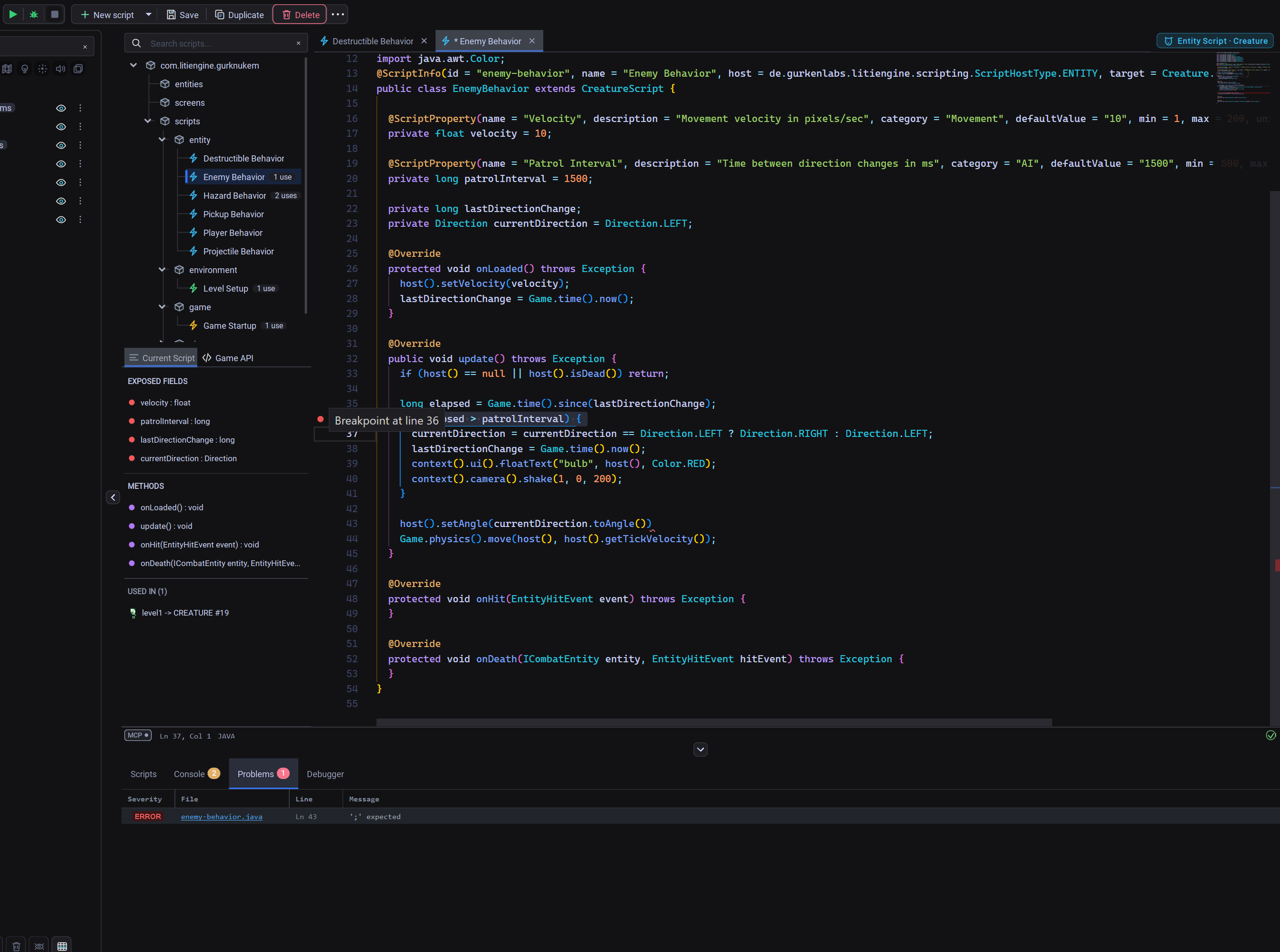 The utiLITI Scripts Workspace with source explorer, class outline, tabbed code editor, and script inspector.
Opening a script asset or double-clicking an attached script switches to the Scripts workspace automatically. Source files remain ordinary project files; the workspace does not copy them into .litidata.
Script definitions
A definition connects a stable editor ID to source and an implementation class:
| Field | Purpose |
|---|---|
| ID | Stable value stored by bindings, such as enemy.guard |
| Display name | Human-readable asset name |
| Language | java for compiled classes |
| Source | Project-relative source path |
| Implementation | Fully qualified JVM class name |
| Host | Game, environment, or entity lifecycle |
| Target type | Optional compatible host class |
Keep the ID stable when moving or renaming source files. Changing it intentionally creates a new logical script and leaves old bindings unresolved until reassigned.
Editing source
The central Scripts workspace keeps multiple closable files open in tabs. The editor uses the active utiLITI light or dark theme, and shows line/column and language context in its status bar. Problems and compiler output stay in a bounded bottom dock instead of displacing the source editor.
The outline groups the active script into its class, fields, methods, and referenced project dependencies. It only indexes class-level declarations, so imports and method-local variables are not reported as fields. Selecting a class member moves the editor caret to its declaration.
New script creates a source file and definition directly in the workspace and opens it as a tab. Script creation does not open a separate source-editing dialog. Write code in the center editor and configure its display name, lifecycle host, and compatible entity target in the right inspector.
The target field is a selector populated from engine and compiled project entity types. Applying inspector metadata updates the resource definition together with the source @ScriptInfo annotation, script base class, and lifecycle method names. This prevents the editor, compiler, and binding picker from seeing different host types.
Reload from disk discards the current editor buffer and reads the file again. Save writes the source. Compile & reload compiles first and only replaces working instances after successful compilation.
If a file changed externally after utiLITI loaded it, utiLITI refuses to overwrite it. Reload the external version before saving. This keeps IntelliJ and utiLITI from silently replacing each other's changes.
Binding scripts to entities
Select any entity-backed map object. The common Scripts inspector section is available for creatures, props, triggers, emitters, lights, sounds, spawn points, static shadows, and collision boxes. Generic map areas do not create runtime entities and therefore do not offer script bindings.
The inspector lets you:
- Pick compatible script assets by display name instead of typing an ID.
- Add or remove scripts.
- Change execution order.
- Enable or disable individual bindings.
- Configure fields exposed with
@ScriptPropertydirectly in the inspector. - Open an attached script in the central Scripts workspace.
Bindings are stored as structured data on the map object. You do not need to edit the encoded map property directly.
Game-level scripts are stored in the resource bundle. Environment scripts use the same binding format on map properties. Entity scripts are detached automatically when their entity is removed.
Configuring script properties (@ScriptProperty)
You can expose tweakable variables and parameters from your Java script directly to game and level designers in the utiLITI inspector without requiring code recompilation or map hardcoding.
1. Annotating fields in code
Add @ScriptProperty to any class field in your script:
import de.gurkenlabs.litiengine.entities.Creature;
import de.gurkenlabs.litiengine.scripting.*;

@ScriptInfo(id = "GoblinAI", host = ScriptHostType.ENTITY, target = Creature.class)
public class GoblinAI extends CreatureScript {

  @ScriptProperty(description = "Aggro search radius in pixels", defaultValue = "150")
  private double aggroRadius = 150;

  @ScriptProperty(description = "Attack damage per hit", defaultValue = "20")
  private int attackPower = 20;

  @ScriptProperty(description = "Whether the goblin retreats when low on health")
  private boolean cowardly = true;

  @Override
  public void update() {
    if (cowardly && host().getHitPoints().get() < 10) {
      // Retreat behavior...
    }
  }
}
2. Available annotation attributes
| Attribute | Purpose |
|---|---|
name |
Optional display name in the inspector (defaults to field name) |
description |
Descriptive tooltip displayed in the inspector |
category |
Grouping category (defaults to "Script") |
defaultValue |
Fallback default value string |
min / max |
Numeric range constraints |
unit |
Optional unit label (e.g. "px", "ms", "%") |
required |
Indicates whether the parameter must be provided |
3. Inspector workflow in utiLITI
- Attach Script: In the Entity or Map Inspector, select the script from the dropdown and click
+. - Select Script: Click the attached script in the Attached Scripts list.
- Edit Properties: The Script Properties table displays all
@ScriptPropertyfields. Double-click any value cell to customize the parameter for that specific entity or map. - Enable/Disable: Toggle the
[x] Enabledcheckbox to toggle script execution on that entity.
4. Automatic runtime injection
When an entity or map environment is loaded at runtime:
ScriptManagerinstantiates the script instance.- The configured property values from the map object or TMX properties are reflected, type-converted, and injected into the
@ScriptPropertyfields. - The script's
onLoaded()hook is invoked with all custom property values initialized.
Explicit reload behavior
Reload is deliberately explicit:
- A new generation is compiled before existing instances are touched.
- A compilation failure leaves the current generation active.
- A successful reload detaches old instances and cancels their managed listeners and delayed work.
- Parameters are reapplied to fresh instances.
- Script-local runtime state is reset.
The diagnostics panel reports the script ID, source location, and failure message. Compilation diagnostics include line and column information.
Opening code in an IDE
The source path stored by a script definition is project-relative and maps directly to the file shown by IntelliJ. You can keep utiLITI open while coding and return to Save & reload when the project compiles.
utiLITI discovers compiled classes from common Gradle, Maven, IntelliJ, and Eclipse output directories, allowing standard Java projects to keep their normal build layout.
The Open in IDE action delegates the source file to the configured operating-system editor. IntelliJ remains the recommended workflow for project-wide refactoring, debugging, Gradle tasks, and advanced Java analysis.
Completion and API documentation
The built-in source editor provides syntax highlighting, line numbers, folding, parameter assistance, documentation popovers, and source-aware member completion. It resolves:
host(),context(),environment(), and staticGamereceivers.- The target declared by
@ScriptInfo, including when resource metadata is stale. CreatureScriptand genericEntityScript<T>host types.- Explicit Java local types and
varassignments. - Chained return types such as
host().getCenter().getX(). - Generic chains through collections, streams, optionals, and typed or inferred local variables.
- Generic controller lookup results such as
host().getController(IMovementController.class).getVelocity(). - Compiled project entity types as well as the engine API.
If a receiver cannot be resolved, utiLITI does not fill the popup with unrelated global methods.
Completion rows use an IDE-style three-column layout: a semantic symbol icon, the method or field signature, and a right-aligned result type. Method names are emphasized while parameter types remain visually secondary. The popup and its documentation window follow the active editor theme and use stable dimensions to avoid resizing as suggestions change.
Controller APIs provide context-sensitive lookahead completion. After getController( or in the first argument of setController(, the popup lists controller class tokens such as IMovementController.class. After new, addController(, or the implementation argument of setController, it lists only concrete controller implementations whose public constructors accept the current script host. Choosing a one-argument controller inserts the complete new Controller(host()) wiring when appropriate. The second argument of setController is also filtered by the controller contract selected in its first argument.
The controller list is generated from the running engine and the project's compiled output. Rebuilding project code and choosing Reload project code makes newly added project controllers available without maintaining an editor-specific registry.
Completion data is generated from the code that utiLITI actually loaded:
- Reflection walks public engine types reachable from
Game, the selected host type,ScriptContext, environments, entity queries, and abilities. - Compiled project entity, controller, and script-reachable classes are added through project-code discovery.
- When matching source is available, documentation comments are read from the engine or project source tree and attached to completion items.
- Missing project output degrades to the stable engine API instead of preventing editing.
This keeps suggestions aligned with the engine version and the project's real entity subclasses. A future build-time API-index task can package the same symbols, generic type information, API docs, source links, and examples for installed distributions where source trees are unavailable. That index is deliberately language-neutral so both the embedded editor and external LSP clients can consume it.
For full project-semantic features such as rename refactoring, cross-file error analysis, and debugging, continue using IntelliJ. The intended long-term bridge is an LSP/DAP adapter backed by the generated engine API index, not a separate utiLITI-only source model.
Warning
Previewing a project executes trusted project code. Only run projects and scripts from sources you trust.